Control your Onkyo, Pioneer or Integra receiver from your Mac
Your AV receiver, right in the Mac menu bar.
Onkyo, Pioneer and Integra receivers can be controlled over the network, but not from a Mac app of their own. Receiver Bar puts your receiver in the Mac menu bar, so volume, inputs and listening modes are one click away.
What you can do from the menu bar
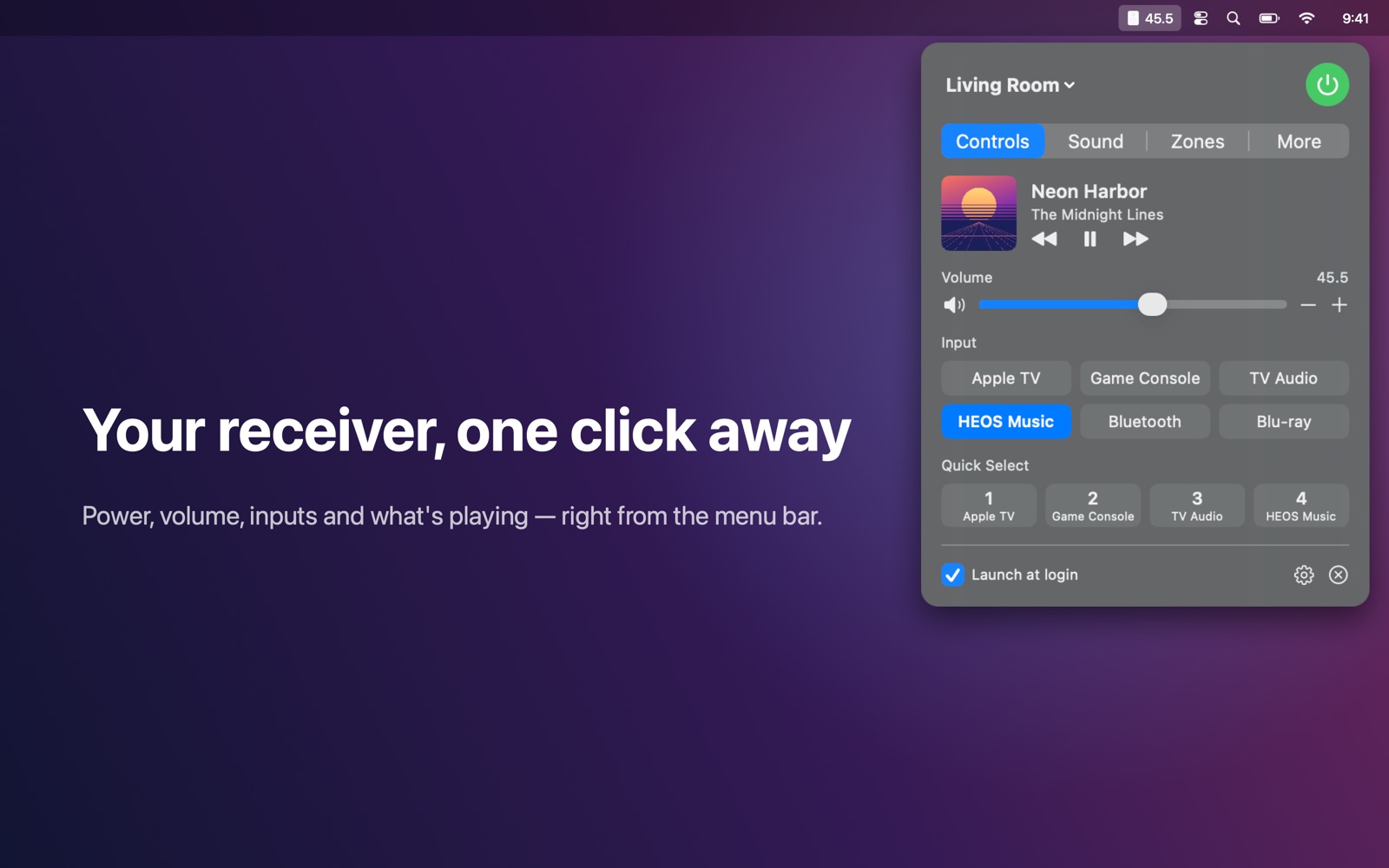
- Power, volume and mute, with the current volume always visible in the menu bar.
- Switch inputs using the names you gave them on the receiver.
- Change the sound or listening mode.
- Sound settings, zones and sleep timer, where your receiver supports them.
- Now playing on streaming inputs, with artwork and play/pause/skip.
- Several receivers, even of different brands, in one app.
Which receivers work
Network-connected Onkyo, Pioneer and Integra receivers that support eISCP (port 60128). That covers most models since about 2012. Older Pioneer models that can only be controlled through port 8102 are not supported.
- Listening modes such as Stereo, Direct and the surround modes can be changed from the panel.
- Artwork for now playing only appears when the receiver sends an artwork link.
- Some models accept only one control connection at a time. Receiver Bar connects briefly and lets go again, but if another app keeps the connection open, the receiver may show as not reachable.
Set up in a minute
- Install Receiver Bar from the Mac App Store.
- Make sure your Mac and receiver are on the same network.
- Click the speaker icon in the menu bar and allow Local Network access when macOS asks. Receiver Bar finds the receiver automatically. You can also add it by IP address under the gear icon.
- If the receiver isn't found while it is in standby, switch on “Network Standby” in its setup menu.
No receiver at hand? Choose “Try the demo” in the app to explore simulated receivers first.
Private by design
Receiver Bar talks only to your receiver on your own network. No account, no cloud and no tracking.
Other brands: Denon or Marantz receiver · Yamaha MusicCast receiver. More help in the Receiver Bar FAQ.