Receiver Bar
Your AV receiver, right in the Mac menu bar.
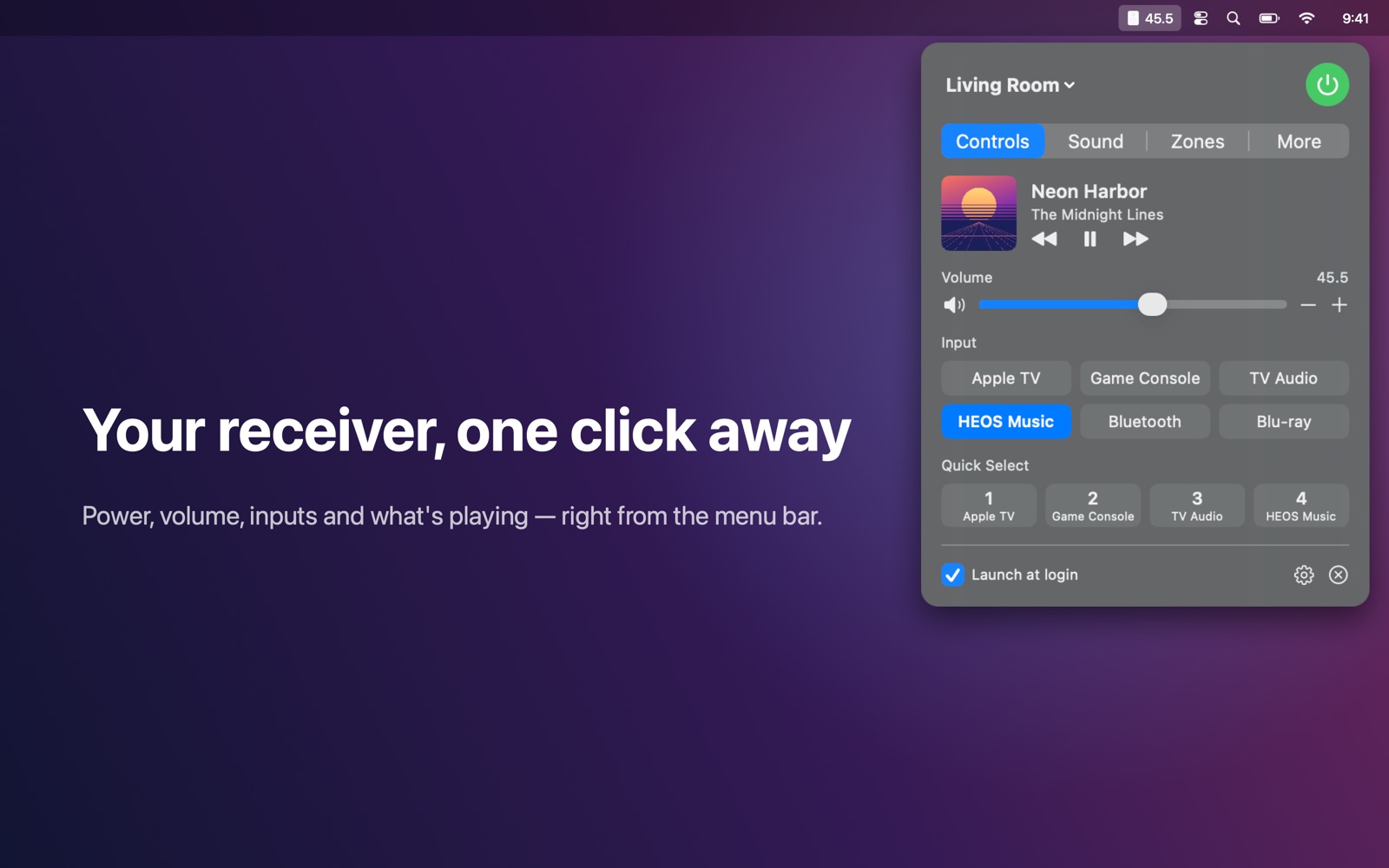
Control your AV receiver from the Mac menu bar.
Features
- Power, volume and mute — the current volume is always visible in the menu bar
- Switch inputs using the names you gave them on the receiver
- Change the sound mode or listening mode (Movie, Music, Stereo, Direct, Straight, …)
- Sound settings, zones and sleep timer, where your receiver supports them
- See what's playing on streaming inputs, with artwork, and play/pause/skip
- Finds receivers automatically; supports multiple receivers, even of different brands
- Works entirely on your local network: no account, no cloud, no tracking
Works with
Works with HEOS-enabled Denon and Marantz receivers, Yamaha MusicCast receivers, and network-connected Onkyo, Pioneer and Integra receivers that support eISCP (most models since about 2012). Older Pioneer models that only offer the port 8102 protocol are not supported.
Guides per brand
- Control a Denon or Marantz receiver from your Mac
- Control a Yamaha MusicCast receiver from your Mac
- Control an Onkyo, Pioneer or Integra receiver from your Mac
Support
Questions, a problem, or a feature request? Email tom@tomfranssen.nl. Please mention your macOS version and your device model, or use “Email support” in the app, which adds a diagnostics report without passwords or keys.
Common questions
The app doesn't find my receiver
Make sure your Mac and receiver are on the same network, and that Receiver Bar is allowed under System Settings → Privacy & Security → Local Network. You can also add the receiver by its IP address: click the gear icon and enter the address.
Which receivers are supported?
- Denon and Marantz: HEOS-enabled network AV receivers from roughly 2016 onwards (for example the AVR-X and AVC-X series).
- Yamaha: MusicCast receivers. Older non-MusicCast models are not supported.
- Onkyo, Pioneer and Integra: network receivers that support eISCP (port 60128), which covers most models since about 2012. Older Pioneer models that can only be controlled via port 8102 are not supported.
Which settings appear (zones, sound options, sleep timer) depends on what your receiver reports.
Why don't I see “now playing”?
Track information is shown for the receiver's streaming inputs (HEOS on Denon/Marantz, the network and Bluetooth inputs on Yamaha and Onkyo). For HDMI inputs such as Apple TV, the input name is shown instead. On Onkyo models, artwork only appears when the receiver sends an artwork link.
Does it work alongside other apps or home automation?
Yes. On Denon/Marantz and Yamaha, Receiver Bar uses interfaces that allow several apps at once. Some Onkyo, Pioneer and Integra models accept only one control connection at a time; Receiver Bar connects briefly and lets go again, but if another app holds the connection permanently the receiver may show as not reachable.
Can I try it without a receiver?
Yes. When no receiver is found, choose “Try the demo” to explore simulated Denon, Yamaha and Onkyo receivers. Switch between them with the receiver name at the top of the panel.
How do I send diagnostics?
Click the gear icon and choose “Copy diagnostics” or “Email support”. The report is put together on your Mac and contains no passwords or keys; it only leaves your Mac when you paste or send it.