
TV Bar
Your TV remote, right in the Mac menu bar.
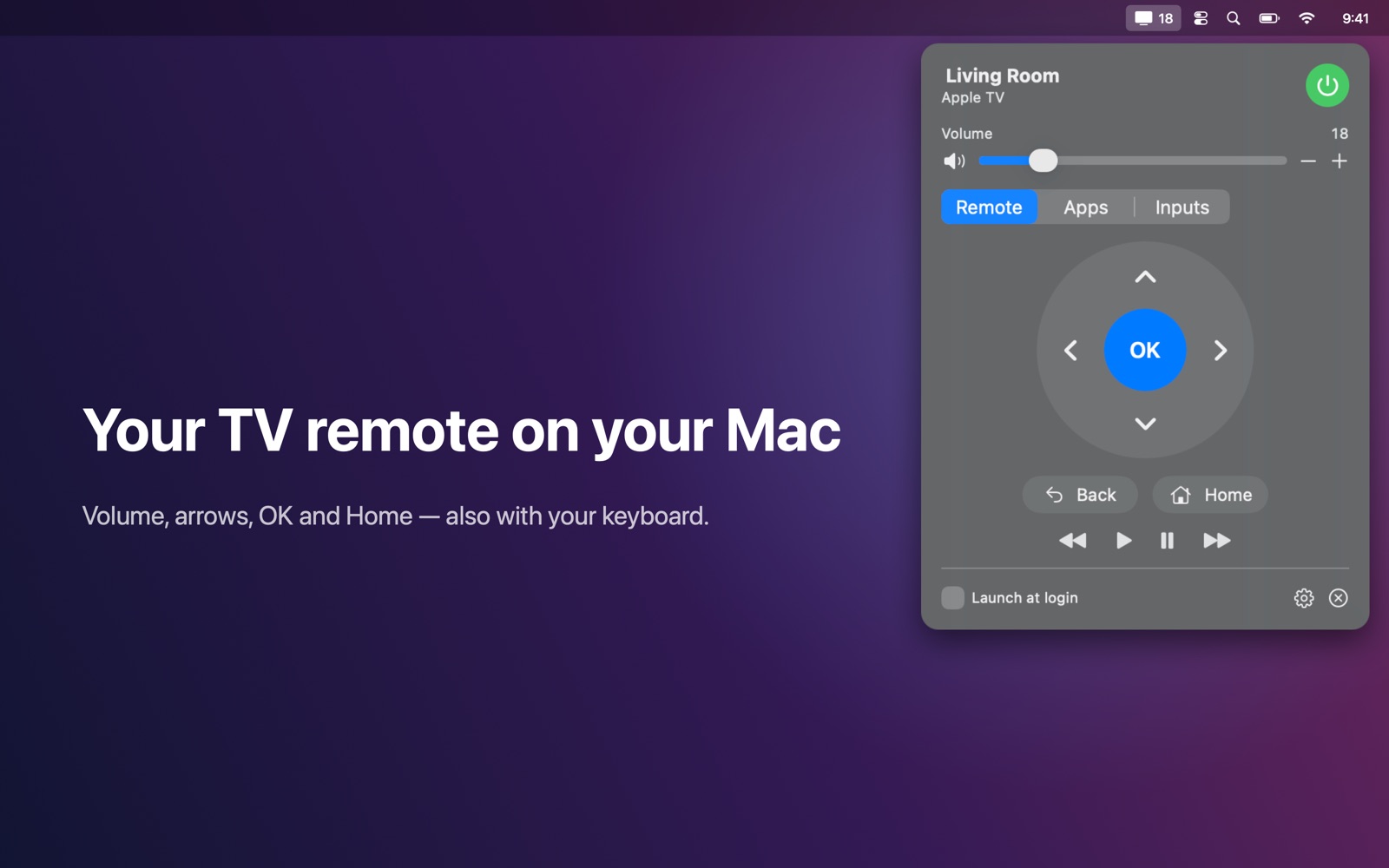
Control your TV from the Mac menu bar.
Features
- Turn the TV off — and on again over the network (Wake-on-LAN)
- Volume slider, − / + and mute; the volume is always visible in the menu bar
- Arrow keys, OK, Back and Home — also with your Mac keyboard
- Launch the TV's apps from a grid with their icons
- Switch HDMI inputs using the names you gave them on the TV
- See what's on screen; supports multiple TVs
- Works entirely on your local network: no account, no cloud, no tracking
Works with
Works with LG webOS TVs (2014 and newer), Samsung Tizen TVs (2016 and newer) and Sony Bravia TVs with IP control. Features depend on what each TV exposes: Samsung TVs don't report the volume level or input list.
Support
Questions, a problem, or a feature request? Email tom@tomfranssen.nl. Please mention your macOS version and your device model, or use “Email support” in the app, which adds a diagnostics report without passwords or keys.
Common questions
How do I connect my TV?
- LG and Samsung: make sure the TV is on and click Pair. The TV asks whether to allow the connection; choose Allow with the TV remote. You only do this once.
- Sony Bravia: on the TV, open Settings → Network → IP control, set Authentication to “Normal and Pre-Shared Key” and choose a key. Enter the same key in TV Bar.
The app doesn't find my TV
Check that your Mac and the TV are on the same network and that TV Bar is allowed under System Settings → Privacy & Security → Local Network. You can also add the TV by its IP address (gear icon). The TV's network settings show its address.
Turning the TV on doesn't work
TV Bar turns the TV on with a Wake-on-LAN packet. The TV must allow being turned on over the network, for example “Turn on via Wi-Fi” or “Remote start” in its settings.
Why don't I see the volume or inputs on my Samsung TV?
Samsung TVs don't report their volume level or input list over the network, so TV Bar shows − / + and mute buttons instead. Features depend on what each TV exposes.
Can I try it without a TV?
Yes. Choose “Try the demo”: three simulated TVs (one per brand) show every feature.
How do I send diagnostics?
Use “Copy diagnostics” or “Email support” in the app. The report contains no passwords, keys or pairing codes and only leaves your Mac when you paste or send it.