
Switch Bar
Your smart plugs and power meters, right in the Mac menu bar.
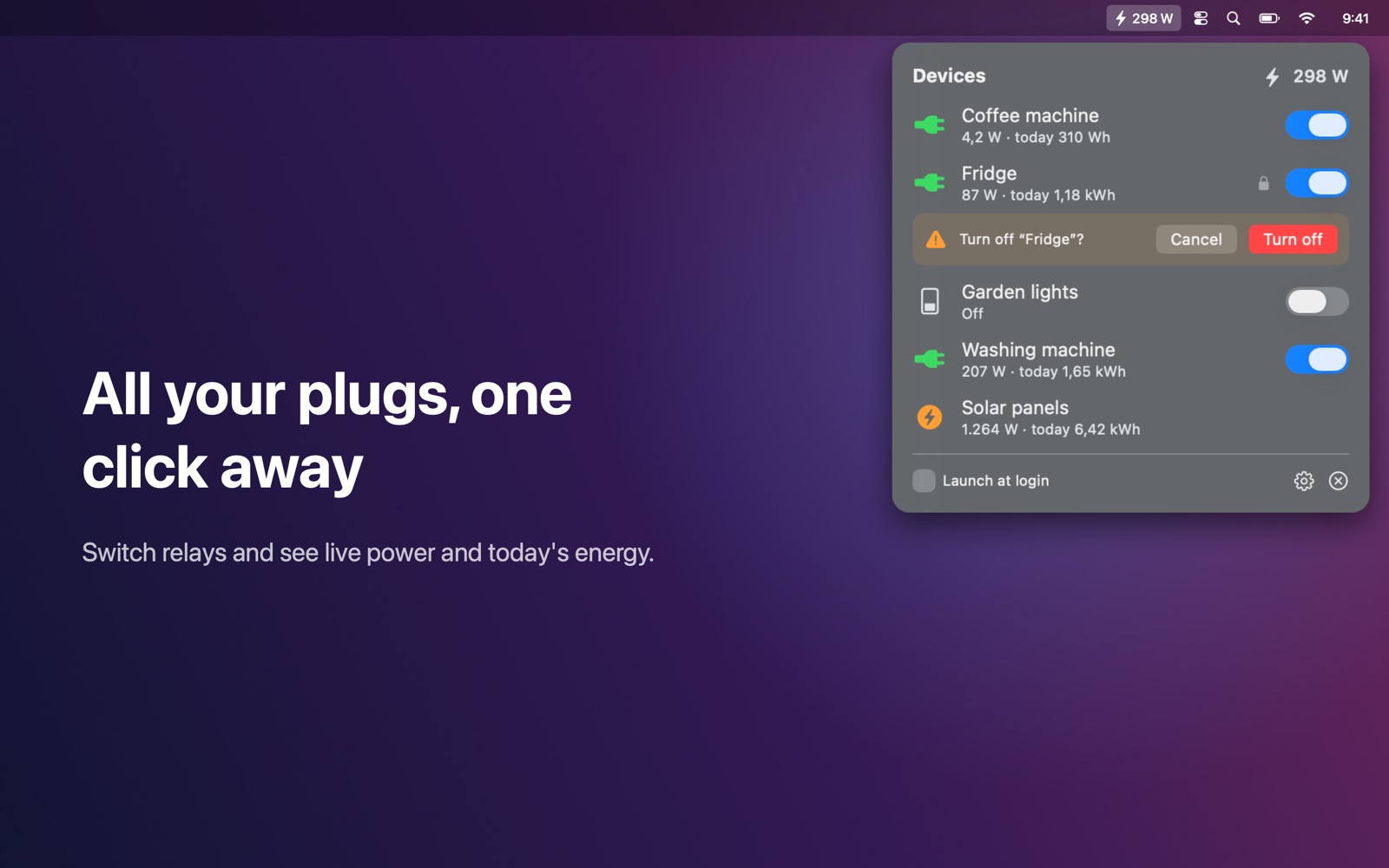
See and switch your smart plugs and relays right from the Mac menu bar.
Features
- All your devices in one list, with an on/off switch for every relay
- Live power in watts, energy used today and in total
- Optional total power in the menu bar, e.g. "312 W" — leave out solar meters if you like
- "Confirm before switching" for devices that must not be switched by accident (fridge, doorbell, server)
- Hide devices and rename them locally
- Finds devices automatically via Bonjour, or add one by IP address
- Password-protected devices are supported; passwords are kept in your Keychain
- Works entirely on your local network: no account, no cloud, no tracking
Works with
Works with Shelly devices (Gen1, Gen2, Gen3 and Gen4: Plug, Plus/Pro, Mini, PM and EM models).
Support
Questions, a problem, or a feature request? Email tom@tomfranssen.nl. Please mention your macOS version and your device model, or use “Email support” in the app, which adds a diagnostics report without passwords or keys.
Common questions
Which devices are supported?
Shelly devices of Gen1, Gen2, Gen3 and Gen4: Plug, Plus/Pro, Mini, PM and EM models. Switch Bar talks to them directly on your local network, without the Shelly cloud.
The app doesn't find my devices
Switch Bar finds devices via Bonjour. Make sure your Mac and the devices are on the same network and that Switch Bar is allowed under System Settings → Privacy & Security → Local Network. You can also add a device by its IP address in the settings (gear icon).
My device is password protected
Switch Bar asks for the password when it needs it. The password is stored in your Mac's Keychain and is sent only to that device.
How do I prevent switching something off by accident?
In the settings, open the device and turn on “Confirm before switching”. Switch Bar then asks before it switches, which is handy for a fridge, doorbell or server.
Can I try it without devices?
Yes. Choose “Try the demo”: five simulated devices show every feature.
How do I send diagnostics?
Use “Copy diagnostics” or “Email support” in the settings. The report contains no passwords or keys and only leaves your Mac when you paste or send it.