
Shade Bar
Your window shades, right in the Mac menu bar.
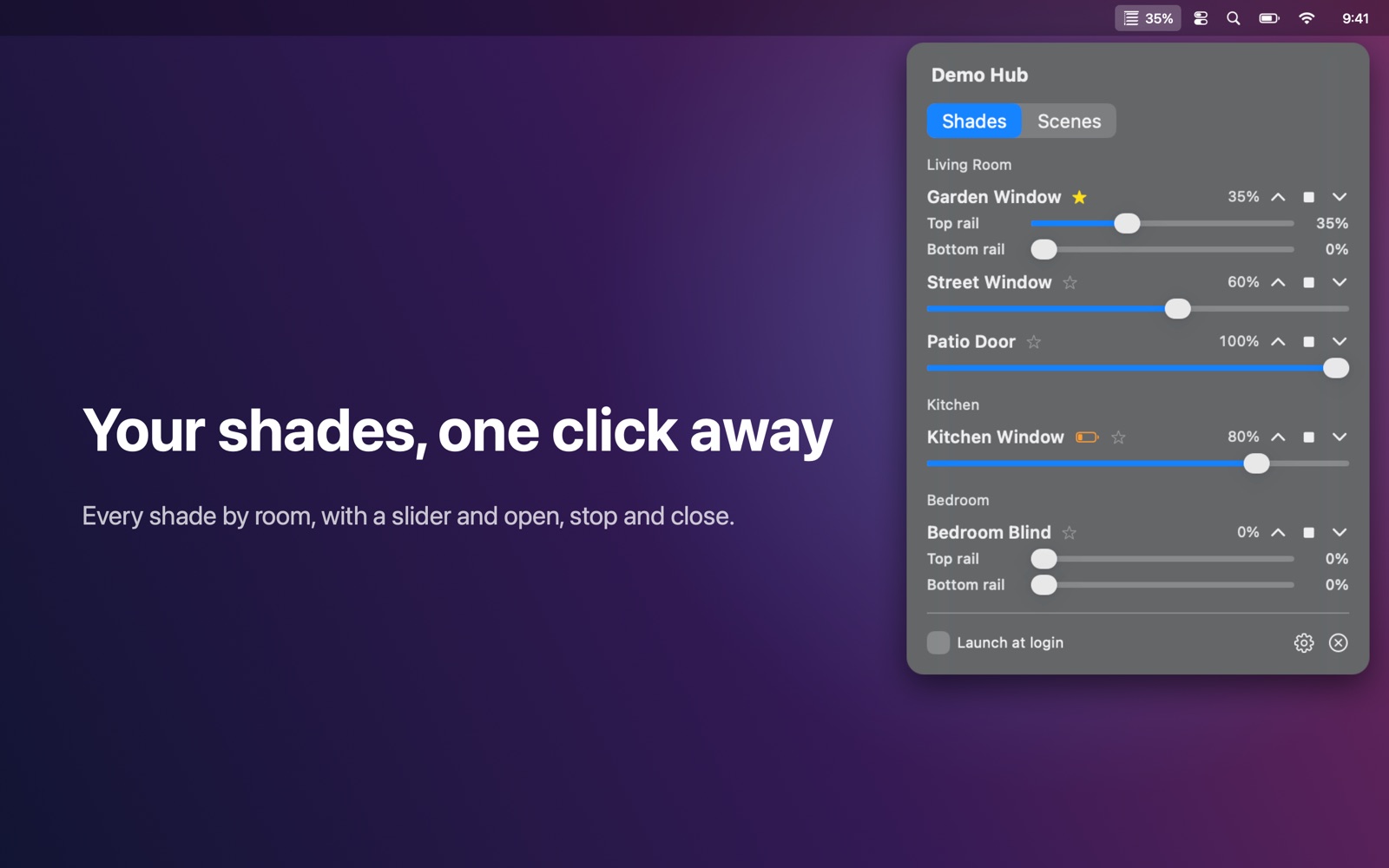
Open, close and position your motorized window shades from the Mac menu bar.
Features
- Every shade grouped by room, with a slider and open / stop / close buttons
- Top-down/bottom-up shades get a slider for each rail
- Run your scenes with one click
- Low-battery warning per shade
- Star a shade to see its position right in the menu bar
- Finds your hub automatically; supports multiple hubs and manual IP entry
- Works entirely on your local network: no account, no cloud, no tracking
Works with
Works with PowerView Gen 2 hubs (Hunter Douglas / Luxaflex). Gen 3 gateways are not supported yet.
Support
Questions, a problem, or a feature request? Email tom@tomfranssen.nl. Please mention your macOS version and your device model, or use “Email support” in the app, which adds a diagnostics report without passwords or keys.
Common questions
Which hubs are supported?
Shade Bar works with PowerView Gen 2 hubs (Hunter Douglas / Luxaflex). PowerView Gen 3 gateways are not supported yet.
The app doesn't find my hub
Make sure your Mac and the hub are on the same network and that Shade Bar is allowed under System Settings → Privacy & Security → Local Network. You can also add the hub by its IP address: click the gear icon and enter the address. Your router's device list shows the hub's address.
How do I see a shade's position in the menu bar?
Click the star next to a shade. Its position (for example 35%) then appears next to the menu bar icon.
What do the battery warnings mean?
When the hub reports a low battery for a battery-powered shade, Shade Bar shows a battery symbol next to it. Recharge or replace the batteries as described by your shade's manufacturer.
Can I try it without a hub?
Yes. Without a hub on the network, choose “Try the demo”: a simulated hub with five shades and six scenes shows every feature.
How do I send diagnostics?
Use “Copy diagnostics” or “Email support” in the app. The report contains no passwords or keys and only leaves your Mac when you paste or send it.