Remote Bar
Your Apple TV remote, right in the Mac menu bar.
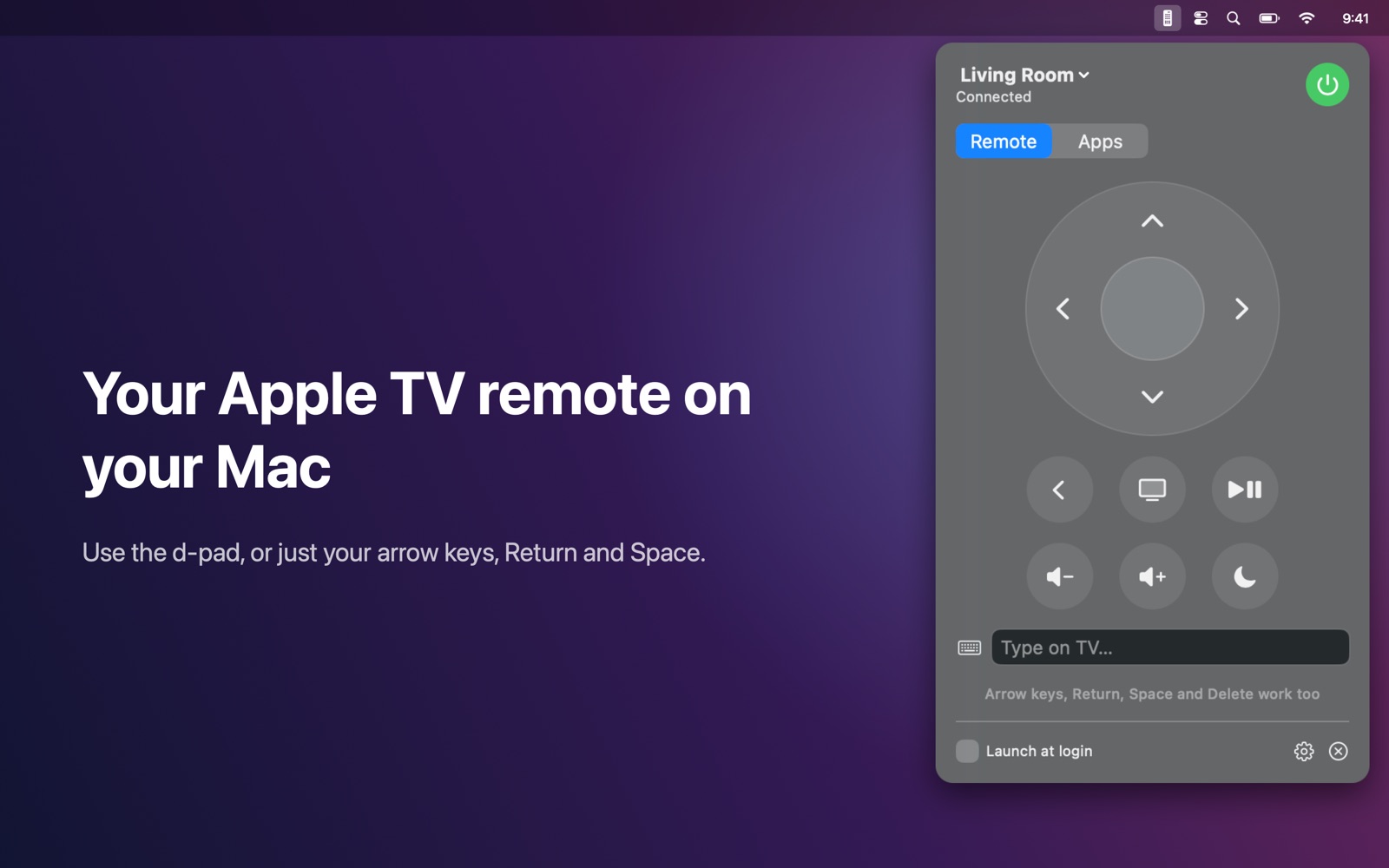
Control your Apple TV from the Mac menu bar.
Features
- D-pad, Select, Back, Home, Play/Pause, volume and sleep/wake
- Use your Mac's arrow keys, Return, Space and Delete as the remote
- Type on the TV from your Mac keyboard — no more letter-by-letter searching
- Launch apps from a grid, with your favourites pinned at the top
- Multiple Apple TVs; finds them automatically
- Private: works entirely on your local network — no account, no cloud, no tracking
Works with
Requires an Apple TV with tvOS 15 or later on the same network.
Support
Questions, a problem, or a feature request? Email tom@tomfranssen.nl. Please mention your macOS version and your device model, or use “Email support” in the app, which adds a diagnostics report without passwords or keys.
Common questions
How do I pair my Apple TV?
Make sure the Apple TV is on, then choose “Pair…” in Remote Bar. The TV shows a 4-digit code; type it into the app. You only need to do this once. The pairing keys are stored in your Mac's Keychain.
Which Apple TVs are supported?
Apple TV models running tvOS 15 or later, on the same network as your Mac.
The app doesn't find my Apple TV
Check that your Mac and Apple TV are on the same network and that Remote Bar is allowed under System Settings → Privacy & Security → Local Network. Waking the Apple TV with its own remote can help it show up.
How do I remove Remote Bar from my Apple TV?
Unpairing in Remote Bar forgets the keys on your Mac. To remove Remote Bar from the TV as well, open Settings → Remotes and Devices on the Apple TV.
Can I try it without an Apple TV?
Yes. Without an Apple TV on the network, choose “Try the demo”. If an Apple TV is found, use the gear icon → “Add demo Apple TV”.
Something stopped working after a tvOS update
Remote Bar uses the same local protocol as the iPhone remote. If a tvOS update changes it, some features may stop working until Remote Bar is updated. Please email tom@tomfranssen.nl with a report from “Copy diagnostics” (gear icon); it contains no passwords or keys.