Print Bar
Your 3D prints, right in the Mac menu bar.
Keep an eye on your 3D prints from the Mac menu bar.
Features
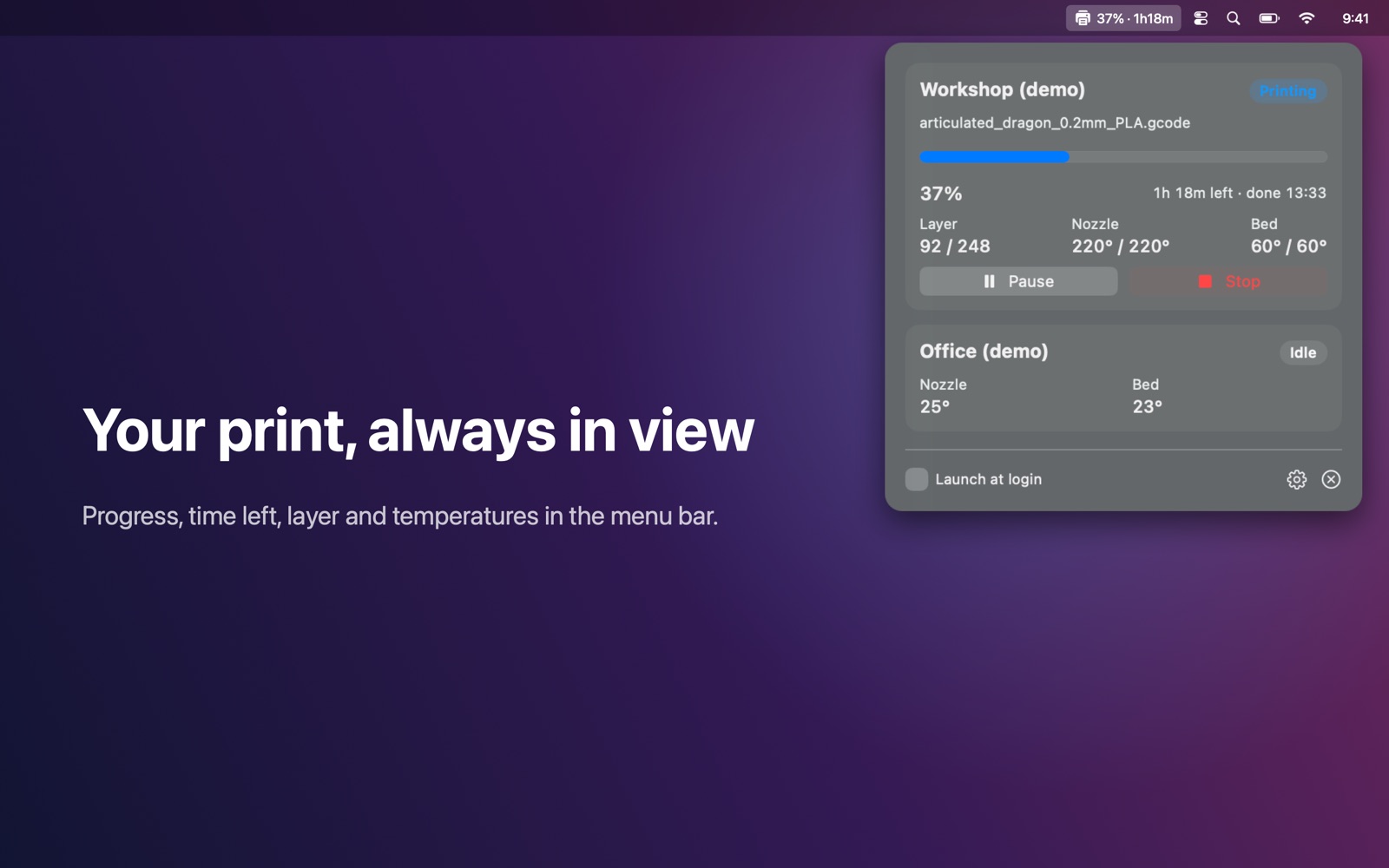
- Progress and time left right in the menu bar: "42% · 1h12m"
- File name, progress bar, ETA clock time, layer x / y, nozzle and bed temperature
- Pause, resume and stop (with confirmation)
- A notification when a print finishes or fails
- Multiple printers, mixed types
- Entirely local: no account, no cloud, no tracking. Keys and access codes stay in your Keychain.
Works with
Works with Bambu Lab printers in LAN mode (X1, P1, A1), Klipper via Moonraker (Mainsail/Fluidd setups), OctoPrint, and Prusa printers with PrusaLink (MK4, XL, MINI, Core One).
Support
Questions, a problem, or a feature request? Email tom@tomfranssen.nl. Please mention your macOS version and your device model, or use “Email support” in the app, which adds a diagnostics report without passwords or keys.
Common questions
How do I add a Bambu Lab printer?
On the printer, open Settings → Network (WLAN) and enable LAN mode; the access code and IP address are shown there. In Print Bar choose Add printer → Bambu Lab (LAN) and enter the IP address, serial number and access code.
Pause and stop don't work on my Bambu Lab printer
On recent Bambu Lab firmware, pause and stop over the local network only work when “LAN-only mode” and “Developer mode” are enabled on the printer. Otherwise the printer refuses the command and Print Bar shows that message. The status display works either way.
How do I connect OctoPrint, Klipper or PrusaLink?
- OctoPrint: click “Request key from OctoPrint”, then open OctoPrint in your browser and allow access for “Print Bar”. Older OctoPrint versions without app keys need an API key copied from OctoPrint's settings.
- Klipper (Moonraker): usually just the address. An API key is only needed when Moonraker requires authorization.
- PrusaLink: on the printer, Settings → Network → PrusaLink shows the user name and password to enter.
Keys, access codes and passwords are stored in your Mac's Keychain.
My printer isn't found automatically
Not every printer announces itself on the network. Add it by IP address via Add printer. Make sure Print Bar is allowed under System Settings → Privacy & Security → Local Network.
Can I try it without a printer?
Yes. Choose “Try the demo”: a simulated print progresses in real time, and pause, resume, stop and the finished notification can all be tried.
How do I send diagnostics?
Use “Copy diagnostics” or “Email support” in the app. The report contains no passwords, access codes or keys; serial numbers are shortened.