
Light Bar
Your lights, right in the Mac menu bar.
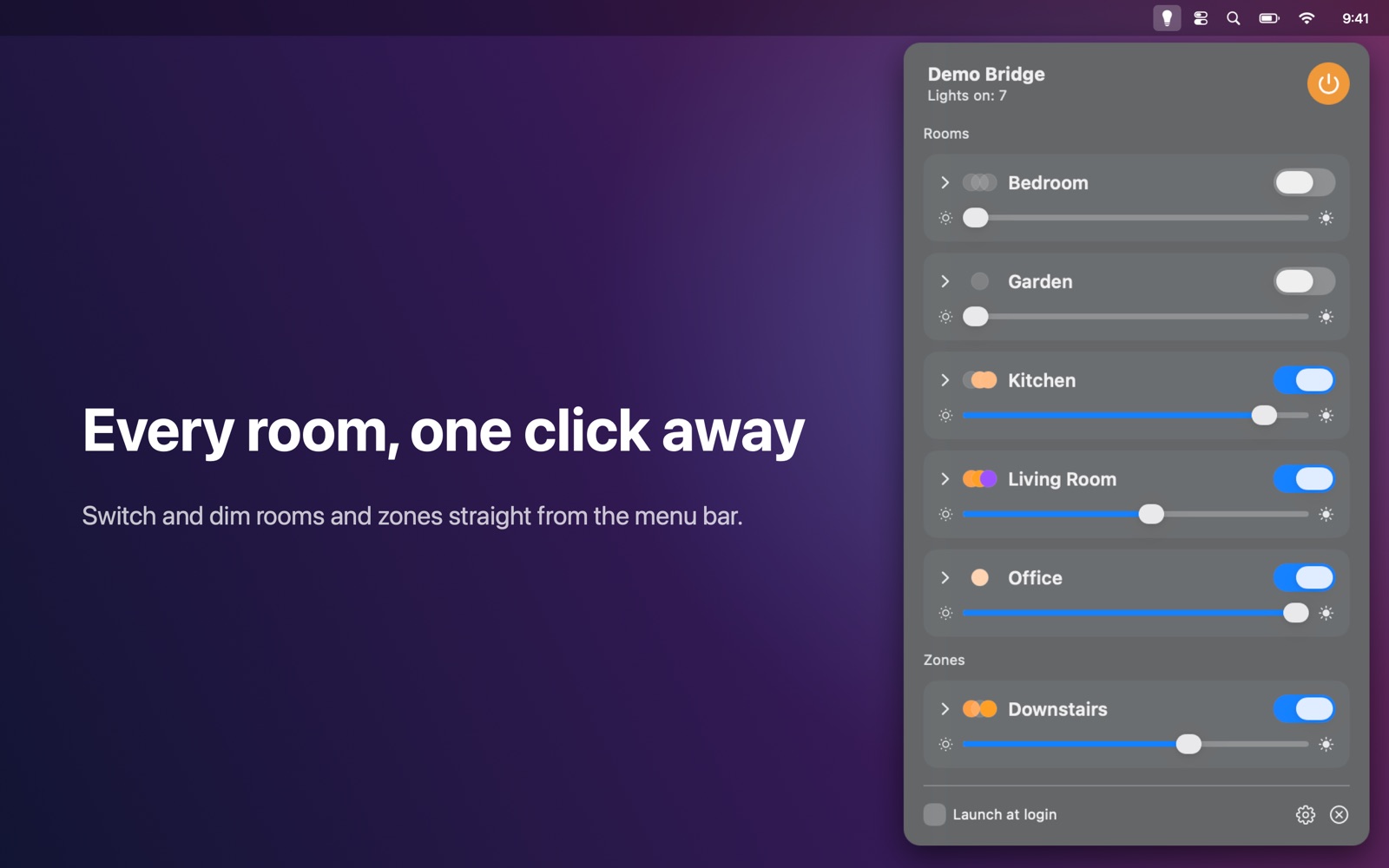
Control your lights from the Mac menu bar.
Features
- Every room and zone with an on/off switch and a brightness slider
- Expand a room for its scenes and for each light: on/off, brightness, colour temperature and colour
- "All off" with one click; the menu-bar bulb shows whether any light is on
- Instant updates: changes made with switches, the Hue app or automations appear right away
- Finds your bridge automatically; supports multiple bridges and manual IP entry
- Works entirely on your local network: no account, no cloud, no tracking
Works with
Works with Philips Hue bridges (square bridge v2 and Bridge Pro).
Support
Questions, a problem, or a feature request? Email tom@tomfranssen.nl. Please mention your macOS version and your device model, or use “Email support” in the app, which adds a diagnostics report without passwords or keys.
Common questions
How do I pair Light Bar with my bridge?
Light Bar finds your Hue Bridge automatically. When it asks you to pair, press the round link button on top of the bridge and then click Pair in the app. The bridge hands out an access key, which is stored in your Mac's Keychain.
The app doesn't find my bridge
Check that your Mac and the bridge are on the same network and that Light Bar is allowed under System Settings → Privacy & Security → Local Network. You can also add the bridge by its IP address: click the gear icon to open Bridges and enter the address. The Hue app shows the bridge's IP address under Settings → Bridges.
Which bridges are supported?
The square Hue Bridge (v2) and the Hue Bridge Pro. The original round bridge (v1) is not supported. Light Bar uses the bridge's local API, so it doesn't need a Hue account or internet access.
Will changes made elsewhere show up?
Yes. Light Bar listens to the bridge's event stream, so changes from switches, the Hue app or automations appear right away.
Can I try it without a bridge?
Yes. Open the gear (Bridges) and choose “Try the demo”: a simulated bridge with rooms, zones, scenes and colour lights shows every feature.
How do I send diagnostics?
Use “Copy diagnostics” or “Email support” in the app. The report contains no passwords or keys and only leaves your Mac when you paste or send it.